> ## Documentation Index
> Fetch the complete documentation index at: https://docs.etrnl.app/llms.txt
> Use this file to discover all available pages before exploring further.
# Quickstart
 This guide will explain how to create a secure page and start authenticating your products
## What you need
* A working computer
* An ETRNL NFC Tag
* An NFC reader/writer
### Steps
## Creating a secured page
This step assumes that you've already created an account and organization. If not, please sign up.
A secure page is what your customers will see when they want to authenticate their products.
You can use a secure page to display information about the product and provide access to exclusive information when the user is authenticated.
This guide will explain how to create a secure page and start authenticating your products
## What you need
* A working computer
* An ETRNL NFC Tag
* An NFC reader/writer
### Steps
## Creating a secured page
This step assumes that you've already created an account and organization. If not, please sign up.
A secure page is what your customers will see when they want to authenticate their products.
You can use a secure page to display information about the product and provide access to exclusive information when the user is authenticated.
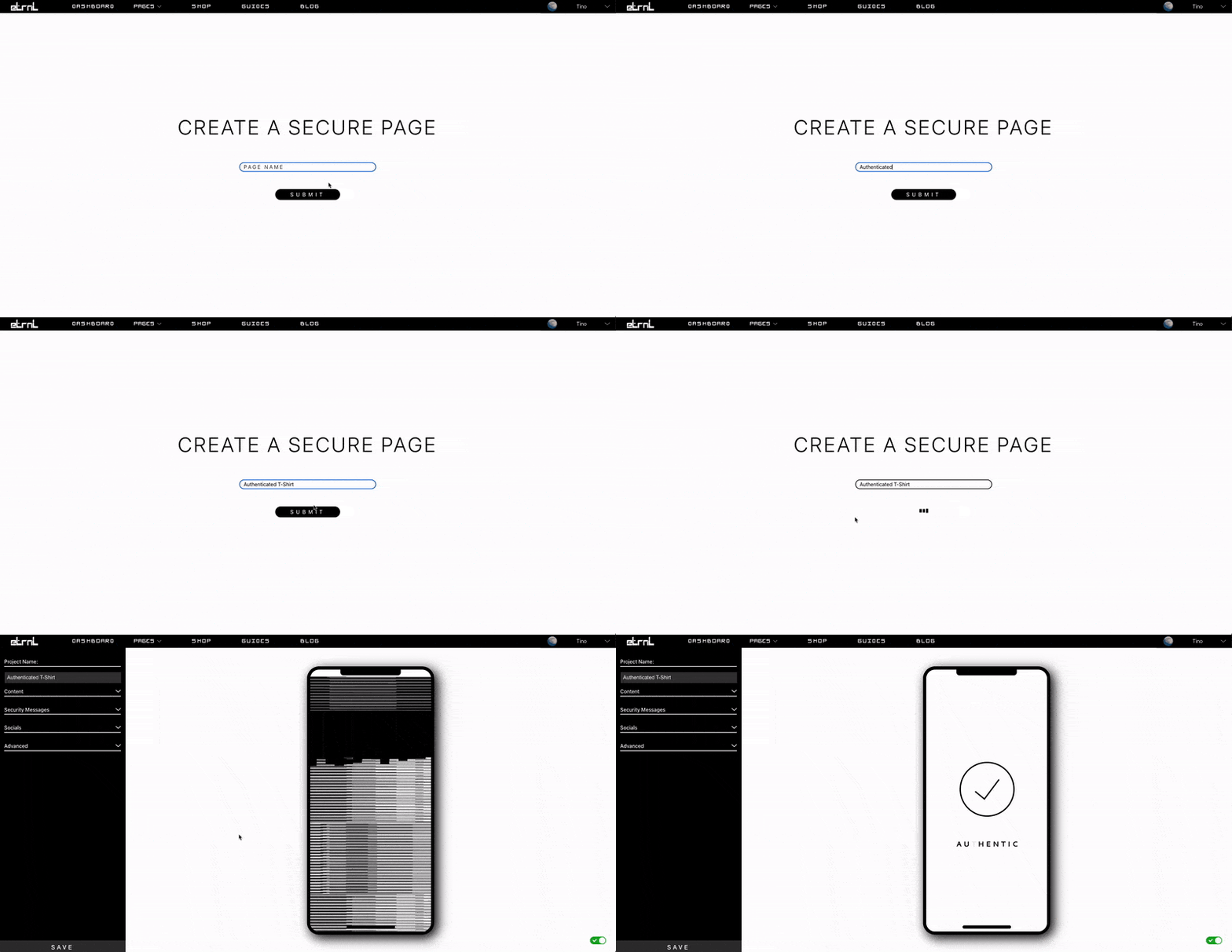
To start, make sure you're logged into your account, and click on PAGES -> CREATE (or just click here).

You will see a prompt where you can type the name of the secure page.
This will typically be the name of the product you're going to be authenticating.
Once you're done, click the SUBMIT button, or press enter.
## Customizing your page
We currently offer limited customizability using our page builder, but we're actively working on a fully customizable version
using drag & drop components. Follow our Discord for updates!
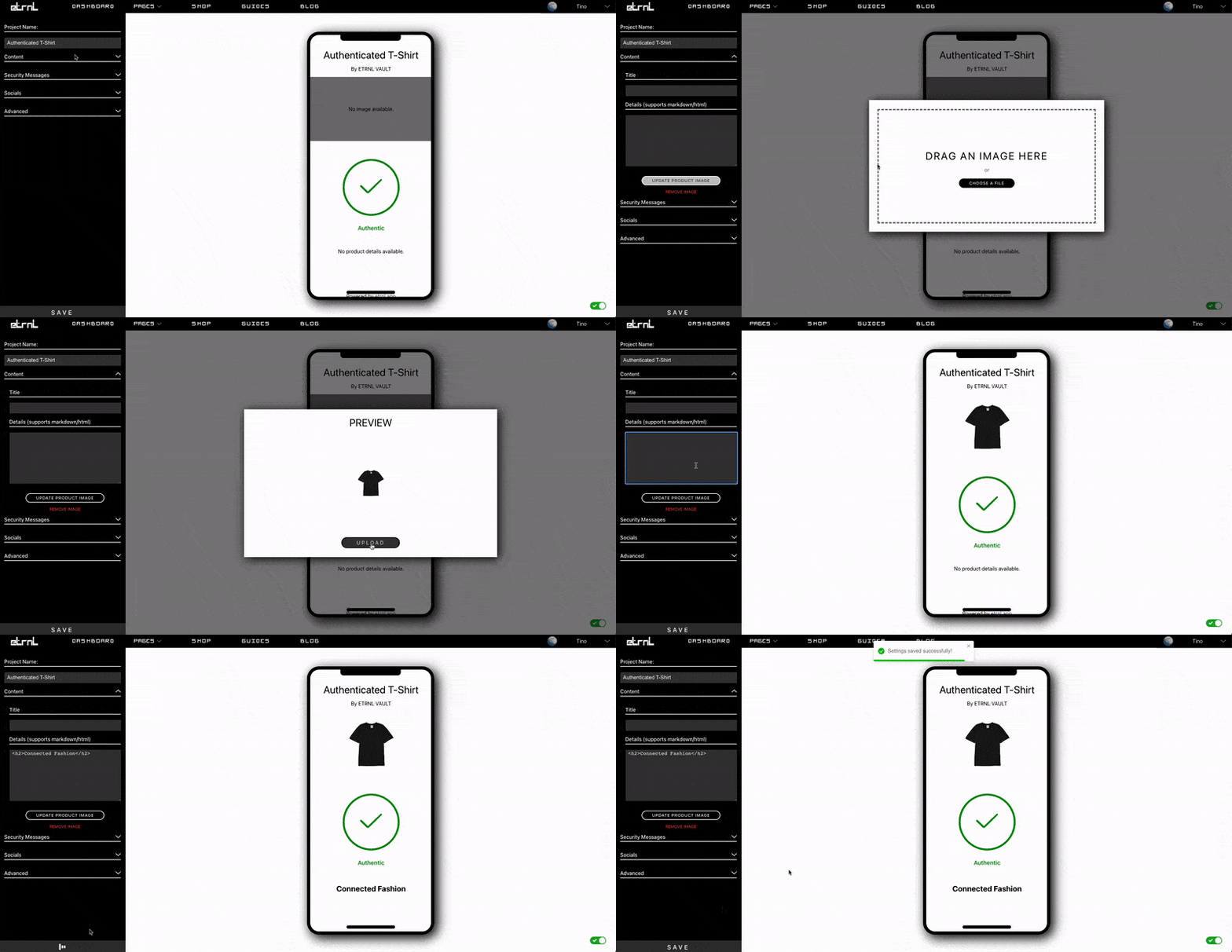
You can modify the image, details, and security messages for your products here.
Click on the Content dropdown in the left sidebar and upload an image of your product.
Once you have an image uploaded, write a sentence or 2 about your product in the Details textbox.
Now just click the SAVE button in the bottom right and you're done!
 ## Program your tag(s)
Download the programmer and connect your NFC reader/writer.
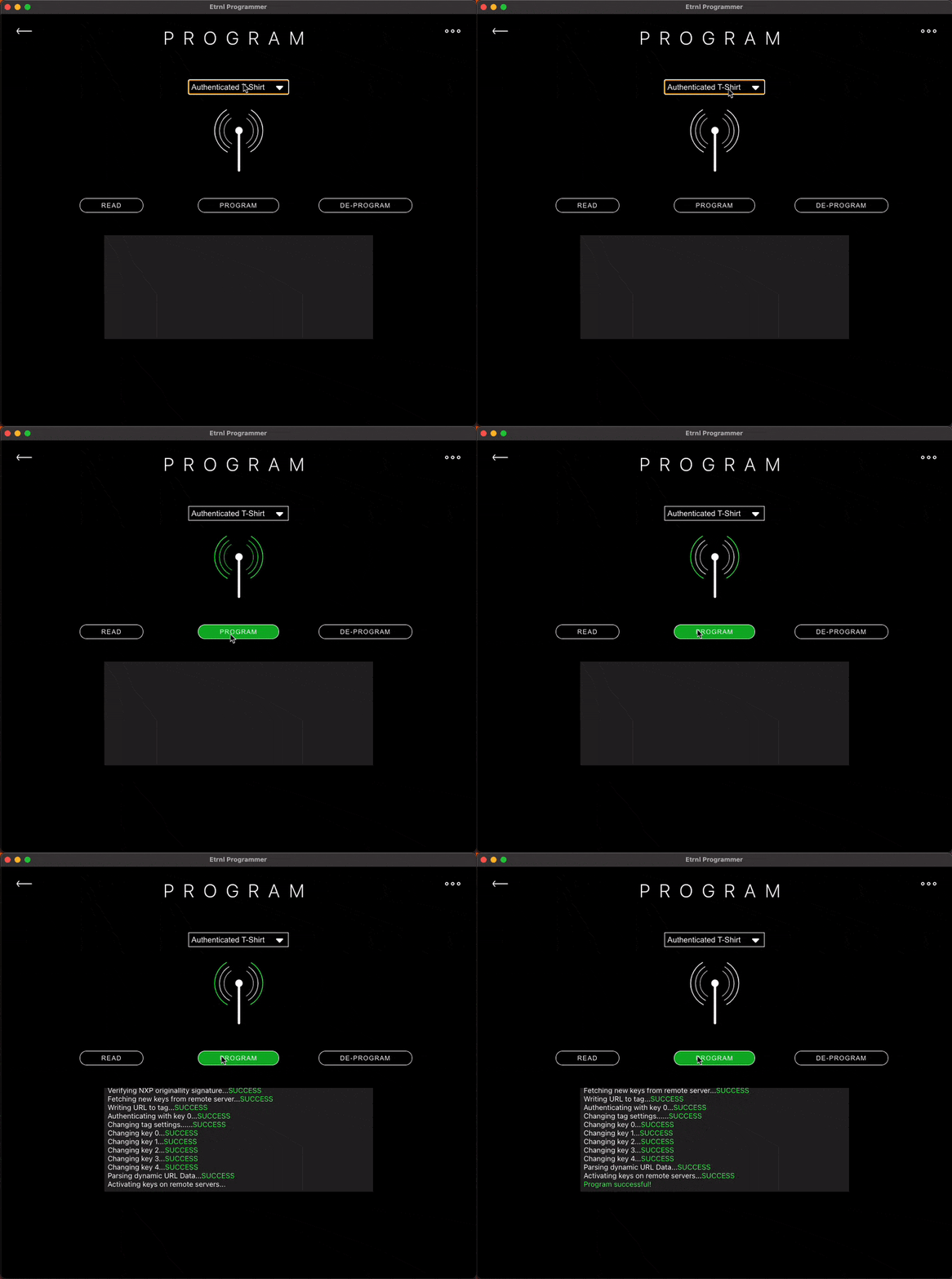
Once you've signed in, make sure the page you just created is selected in the dropdown, and put the programmer in PROGRAM mode.
Now you can just hold your NFC Tag to the reader until you get the Success message.
If you get any error message along the way, put the programmer in DEPROGRAM mode, deprogram the tag, and then try programming it again.
## Program your tag(s)
Download the programmer and connect your NFC reader/writer.
Once you've signed in, make sure the page you just created is selected in the dropdown, and put the programmer in PROGRAM mode.
Now you can just hold your NFC Tag to the reader until you get the Success message.
If you get any error message along the way, put the programmer in DEPROGRAM mode, deprogram the tag, and then try programming it again.
 ## Try it out!
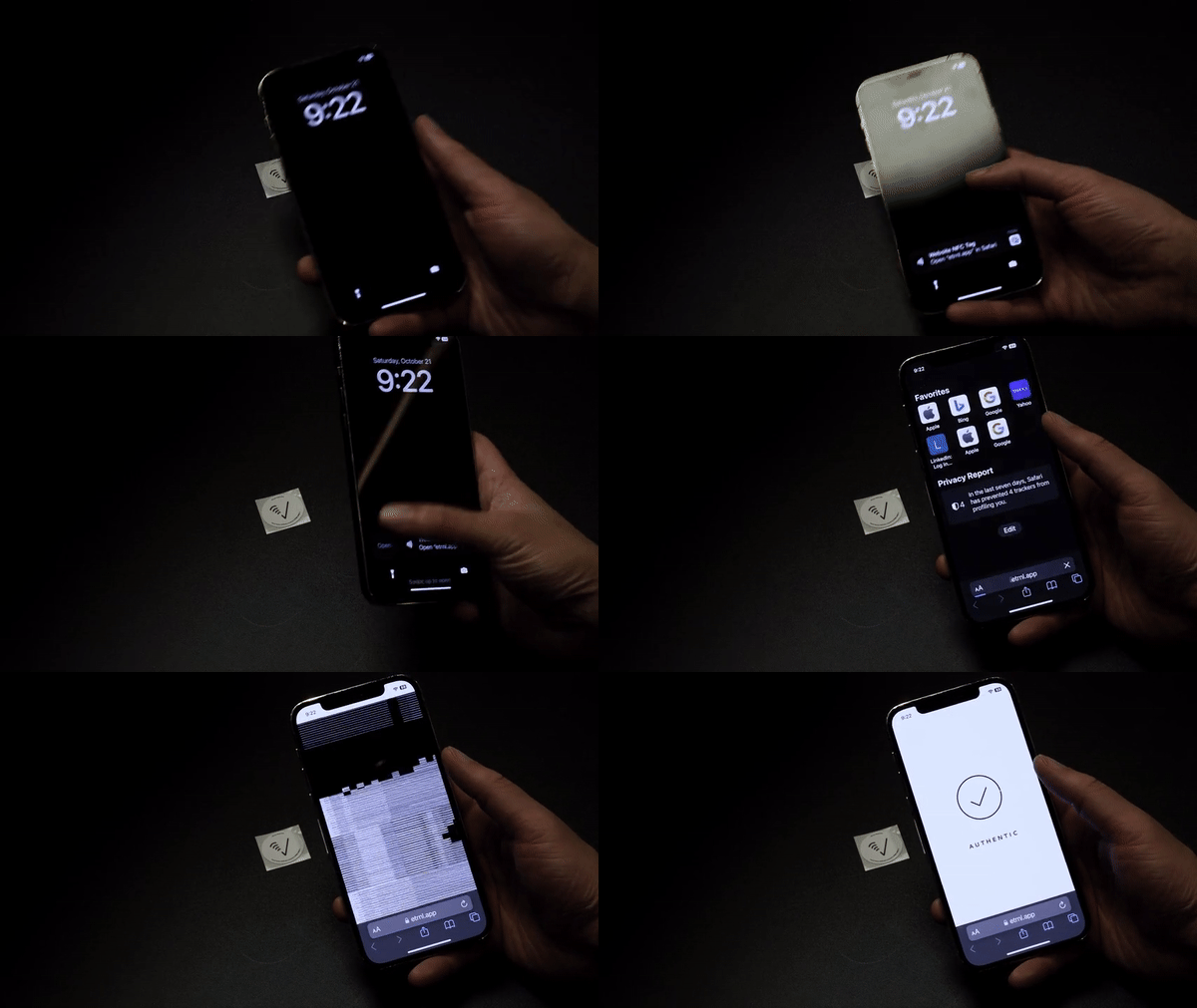
Tap your phone to your tag, and now you should see the authentic animation when you tap the tag, and an inauthentic message when you refresh the page or try visiting the URL again.
### IPhone
On IPhone the NFC reader is at the top of the phone.
If you're having trouble reading the tag, locl the phone and unlock it while the tag is touching the top of the phone.
Based on our testing, IPhones don't poll for NFC tags frequently.
However, immediately after waking your IPhone, it will emit the strongest frequencies to communicate with nearby NFC tags.
### Android
Android phones typically have NFC readers on the back, center of the device.
However, you may need to enable NFC in your phone's settings.
## Try it out!
Tap your phone to your tag, and now you should see the authentic animation when you tap the tag, and an inauthentic message when you refresh the page or try visiting the URL again.
### IPhone
On IPhone the NFC reader is at the top of the phone.
If you're having trouble reading the tag, locl the phone and unlock it while the tag is touching the top of the phone.
Based on our testing, IPhones don't poll for NFC tags frequently.
However, immediately after waking your IPhone, it will emit the strongest frequencies to communicate with nearby NFC tags.
### Android
Android phones typically have NFC readers on the back, center of the device.
However, you may need to enable NFC in your phone's settings.